Post 4: Deploying Your Django App on Render
Connect GitHub, configure environment variables, and go live with static files and migrations in place.

Your Django project is now clean, secure, and pushed to GitHub. In this post, we’ll walk through deploying it on Render.com—a modern platform that handles your infrastructure so you can focus on building.
Render automatically builds and deploys your app from GitHub, provisions a production database, collects static files, and runs migrations. You’ll have a working, public app live on the web in minutes.
⚠️ Note: This is not a fully production-hardened deployment setup. Auto-deploying from main works well for demos, learning, or small apps.
In most real-world teams, you’d want to:
Work on feature branches
Open pull requests
Test in a staging environment
Deploy to production only after validation
That kind of release process is out of scope for this series, but worth keeping in mind if you scale later.
1. Configure Production Settings in settings.py 🔐
Before your first deployment, ensure your Django project is ready for production. Open config/settings.py and apply the following updates:
a. Load SECRET_KEY from an environment variable
import os

# SECURITY WARNING: keep the secret key used in production secret!
SECRET_KEY = os.environ.get('SECRET_KEY', default='your secret key')
b. Automatically disable DEBUG in production
# SECURITY WARNING: don't run with debug turned on in production!
DEBUG = 'RENDER' not in os.environ
c. Dynamically set ALLOWED_HOSTS
ALLOWED_HOSTS = []

RENDER_EXTERNAL_HOSTNAME = os.environ.get('RENDER_EXTERNAL_HOSTNAME')
if RENDER_EXTERNAL_HOSTNAME:
    ALLOWED_HOSTS.append(RENDER_EXTERNAL_HOSTNAME)
⚠️ Never use ALLOWED_HOSTS = ['*'] in production—it exposes you to security risks.
For local development, continue setting ALLOWED_HOSTS in your .env file.
1.5. Set Up Static File Serving with WhiteNoise
Render expects your Django app to collect and serve static files during deployment. To configure this correctly:
a. Install WhiteNoise and Brotli (optional but recommended for compression)
pip install 'whitenoise[brotli]'
pip freeze > requirements.txt
b. Update MIDDLEWARE in settings.py
Insert this line immediately after SecurityMiddleware:
MIDDLEWARE = [
    'django.middleware.security.SecurityMiddleware',
    'whitenoise.middleware.WhiteNoiseMiddleware', # ← add this line
    # ...
]
c. Configure static file settings
Update the static file section in settings.py:
STATIC_URL = '/static/'

# Always set STATIC_ROOT so collectstatic works locally and on Render
STATIC_ROOT = os.path.join(BASE_DIR, 'staticfiles')

# Enable compressed static file storage only in production
if not DEBUG:
    STATICFILES_STORAGE = 'whitenoise.storage.CompressedManifestStaticFilesStorage'
This setup ensures:
STATIC_ROOT is always defined for collectstatic to work locally
Compressed and cache-friendly file names are only used in production
d. Verify it works locally (optional)
python manage.py collectstaticThis should copy your static files into a staticfiles/ directory without errors.
If you don’t want to commit the staticfiles/ folder, add this to your .gitignore:
staticfiles/2. Add PostgreSQL Support in VS Code
Render uses PostgreSQL in production. We’ll use SQLite locally and PostgreSQL on Render.
a. Install required packages:
pip install dj-database-url psycopg2-binary
pip freeze > requirements.txt
b. Update config/settings.py to use dj-database-url:
At the top of the file:
import dj_database_urlThen replace your DATABASES block with:
DATABASES = {
    'default': dj_database_url.config(
        default=f'sqlite:///{BASE_DIR}/db.sqlite3',
        conn_max_age=600
    )
}
This setup:
✅ Uses SQLite locally
✅ Uses PostgreSQL when DATABASE_URL is set by Render
c. Run migrations locally (on SQLite)
python manage.py makemigrations
python manage.py migrate
This ensures your schema is ready before deployment.
3. Commit and Push to GitHub
Now, commit and push these changes to GitHub so that Render can deploy the updated, secure version.
git status
git add .
git commit -m "Configure production settings: SECRET_KEY, DEBUG, ALLOWED_HOSTS, dj-database-url for DB, and WhiteNoise for static files"
git push origin main
For advanced dev/staging setups, you can manually define ALLOWED_HOSTS in your .env, and conditionally load them using a separate settings file or tool like python-dotenv.
4. Create a Web Service on Render
If you don’t already have an account, go to
https://render.com
And click “Sign Up”.
💡 Tip: Choose 'Sign up with GitHub'—Render will need repository access anyway, and this keeps the process seamless.
Then:
Go to
https://dashboard.render.com
Click “New +” → “Web Service”
Choose “Deploy from a Git repository”
Connect your GitHub account and authorise access if prompted
Select your Django project repository
Render will now track your repo and trigger a deploy every time you push to the selected branch (unless auto-deploys are turned off).
5. Configure the Render service
Set the following options:
Name: myproject (or anything you like)
Language: Python 3
Branch: main (or your default branch)
Region: Oregon (US West)
Build Command: ./build.sh
Start Command:
python -m gunicorn config.asgi:application -k uvicorn.workers.UvicornWorker⚠️ Replace config with the name of your Django project directory if it’s different.
Instance Type: Free
6. Add environment variables
Click “Add Environment Variable” and enter the following:
SECRET_KEY: your real Django secret key
DEBUG: False
WEB_CONCURRENCY: 4
To generate a secure key if you didn’t already save it to your .env file.
python -c "from django.core.management.utils import get_random_secret_key; print(get_random_secret_key())"7. Add a PostgreSQL database
In the Render dashboard, go to “New +” → “PostgreSQL”
Choose a name (e.g. myproject-db)
Plan Options: Free
Leave the defaults and click “Create Database”
Under Connections, copy the Internal Database URL
Go back to your Web Service and add this as your DATABASE_URL environment variable
DATABASE_URL: Render provided this
8. Trigger your first deploy
Once environment variables are set, Render will:
Run build.sh
Install dependencies
Collect static files
Apply migrations
Start the app with Gunicorn + Uvicorn
You can follow logs in the dashboard in real-time.
9. View your live site
Once the deploy finishes successfully, you’ll see a Render subdomain URL like:
https://myproject.onrender.com
Open it in your browser and…
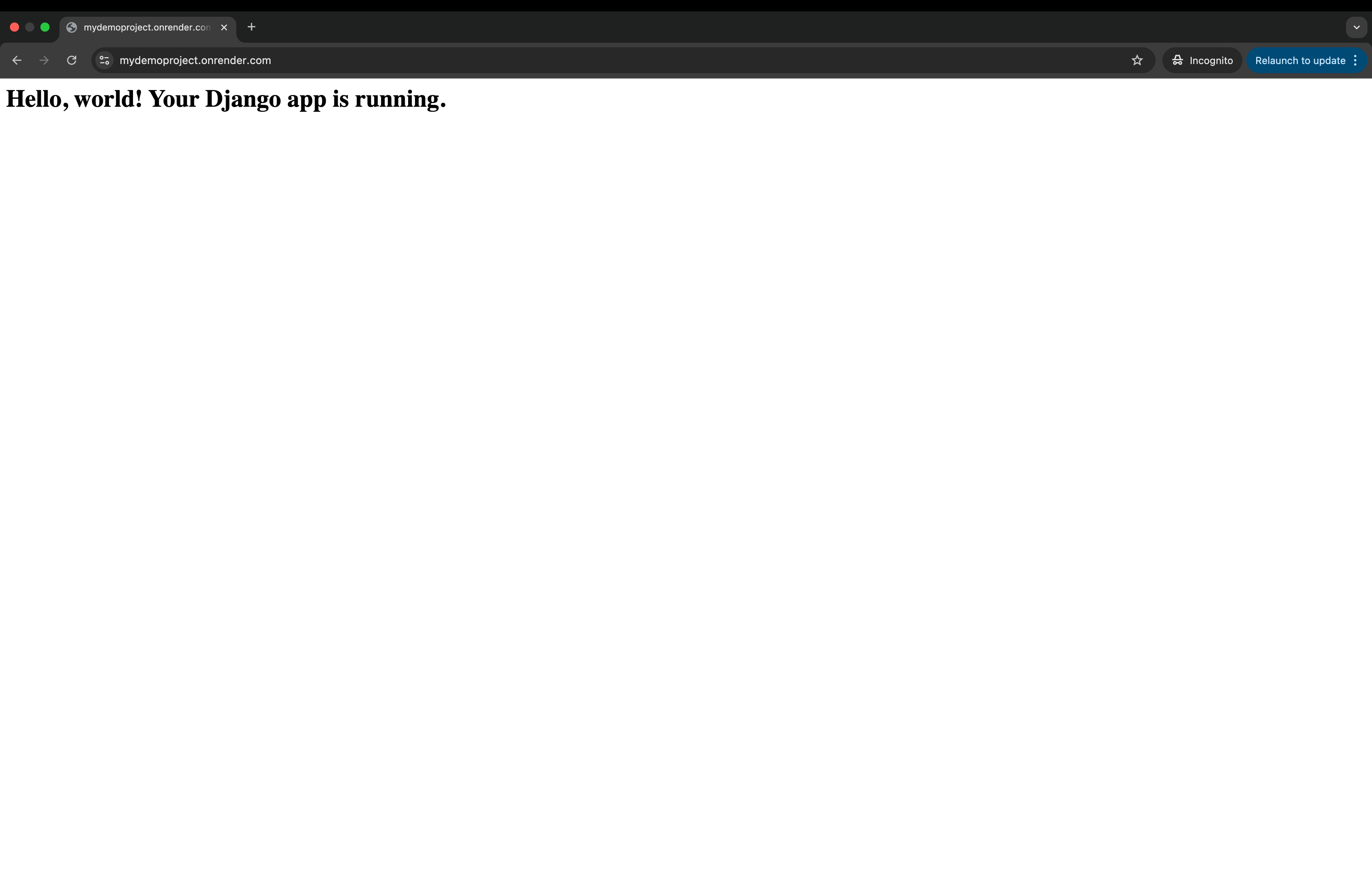
Congratulations! Your Django app is live on the internet.
What started as a folder and a virtual environment is now a fully functional, publicly accessible web app—powered by a production-grade platform.
It may seem simple for now, but this is the foundation for something substantial: a personal project, a prototype, a portfolio piece, or even the beginnings of a Saas product. That’s a big step forward.
✅ Recap: What You’ve Done
✅ Connected your GitHub repo to Render
✅ Used SQLite for local development, PostgreSQL on Render
✅ Configured environment variables securely
✅ Built and deployed your app with migrations and static files handled
✅ Launched a live, public Django app—with no infrastructure management required